set up your wall tablet.
About 10 minutes, start to finish. Android shows a few screens that look corporate — that's normal. This guide tells you exactly what each one means and what to tap.
you need a fresh tablet.
Android only lets lifestuff take over the screen during its very first setup. If this tablet has been used before, back up anything you want to keep, then do a factory reset from the Settings app before you begin.
When Android starts up fresh, skip the "sign in to Google" screen — you can add accounts inside lifestuff once it's running.
the steps.
Follow these in order. Don't worry if your tablet looks slightly different — the screens below are from a Samsung Galaxy Tab but every Android tablet goes through the same sequence.
-
01.
sign in to your lifestuff account.
Open lifestuff.tech/devices on your phone or laptop and sign in. Tap "set up a wall tablet" to generate your setup QR. Keep this screen open — you'll scan it in step 4.
-
02.
factory reset the tablet and power it on.
If the tablet is brand new, just turn it on. If it's been used before, go to Settings → General management → Reset → Factory data reset and follow the prompts. Once it restarts you'll see Android's welcome screen.
-
03.
tap the screen six times, very quickly.
On the very first "Welcome" screen, tap anywhere on the screen six times very quickly — in fast succession, not slow deliberate taps. Android opens a built-in QR code scanner.
If the camera doesn't appear, you're most likely not tapping quickly enough — try again, faster. Also make sure you're on the very first screen, not a Google sign-in screen; if you've already moved past it, go back to the start (factory reset and try again).
-
04.
scan the QR code from your phone.
Hold your phone's lifestuff QR up to the tablet's camera until it scans.
-
05.
connect to Wi-Fi.
After the QR scans, Android prompts you to join a Wi-Fi network — connect to your home network. lifestuff then downloads in the background, which takes a few minutes on a typical home connection.
-
06.
"this tablet belongs to your organisation" — tap Next.
After the download finishes, Android shows this screen. It uses corporate-sounding language because lifestuff uses the same standard Android feature that businesses use to set up office tablets.
This is expected. Tap Next to continue. This message means lifestuff is being installed — not that anyone from a company is watching your tablet.
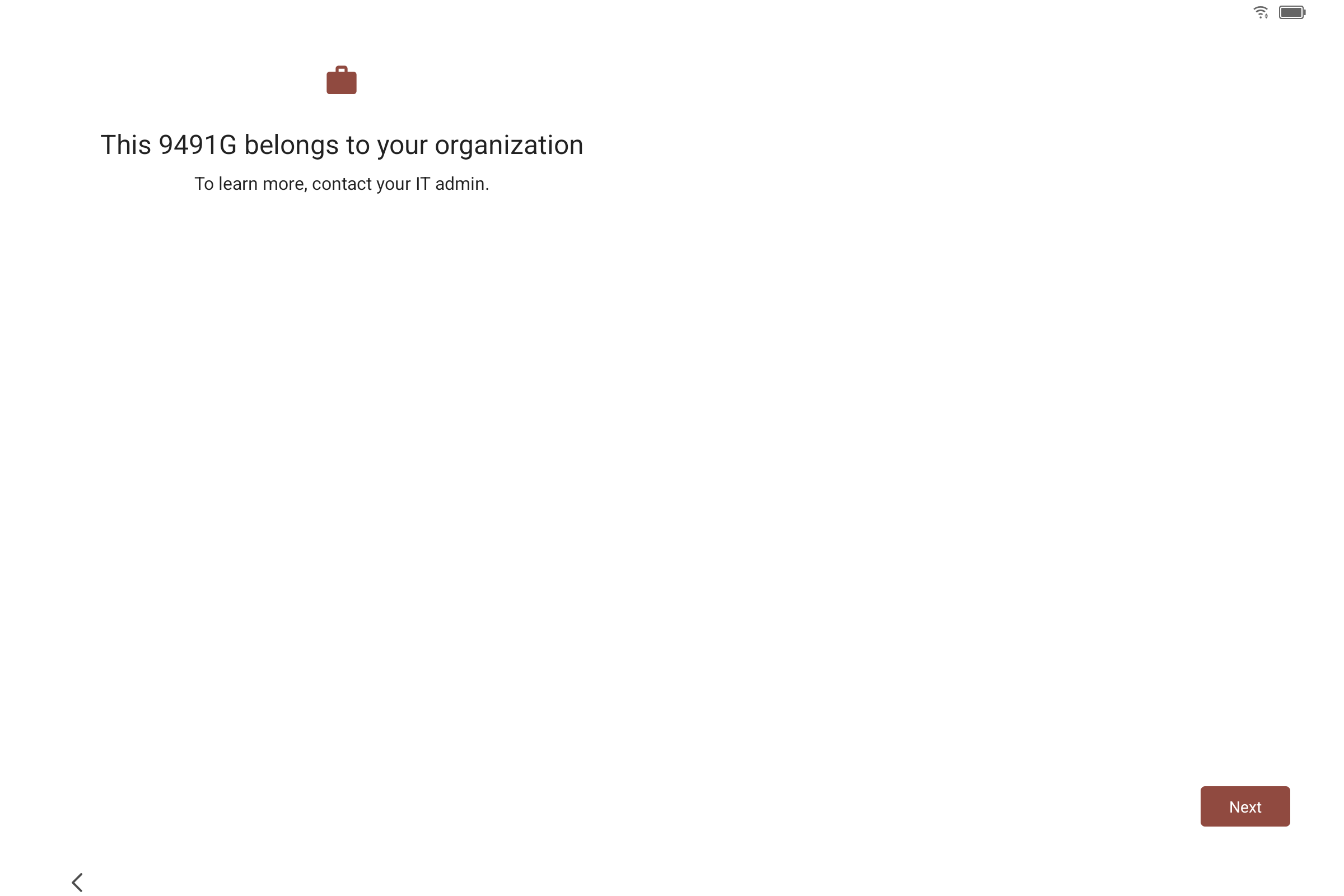
What you'll see on the tablet. Tap Next. -
07.
"let's set up your work device" — tap Accept & continue.
Android shows one more setup screen with an illustration. Again, the "work device" wording is Android's standard language — it doesn't mean lifestuff is connected to any employer or business.
This is expected. Tap Accept & continue. You can tap "View terms" if you're curious — it's Google's standard enterprise setup terms, not anything lifestuff-specific.
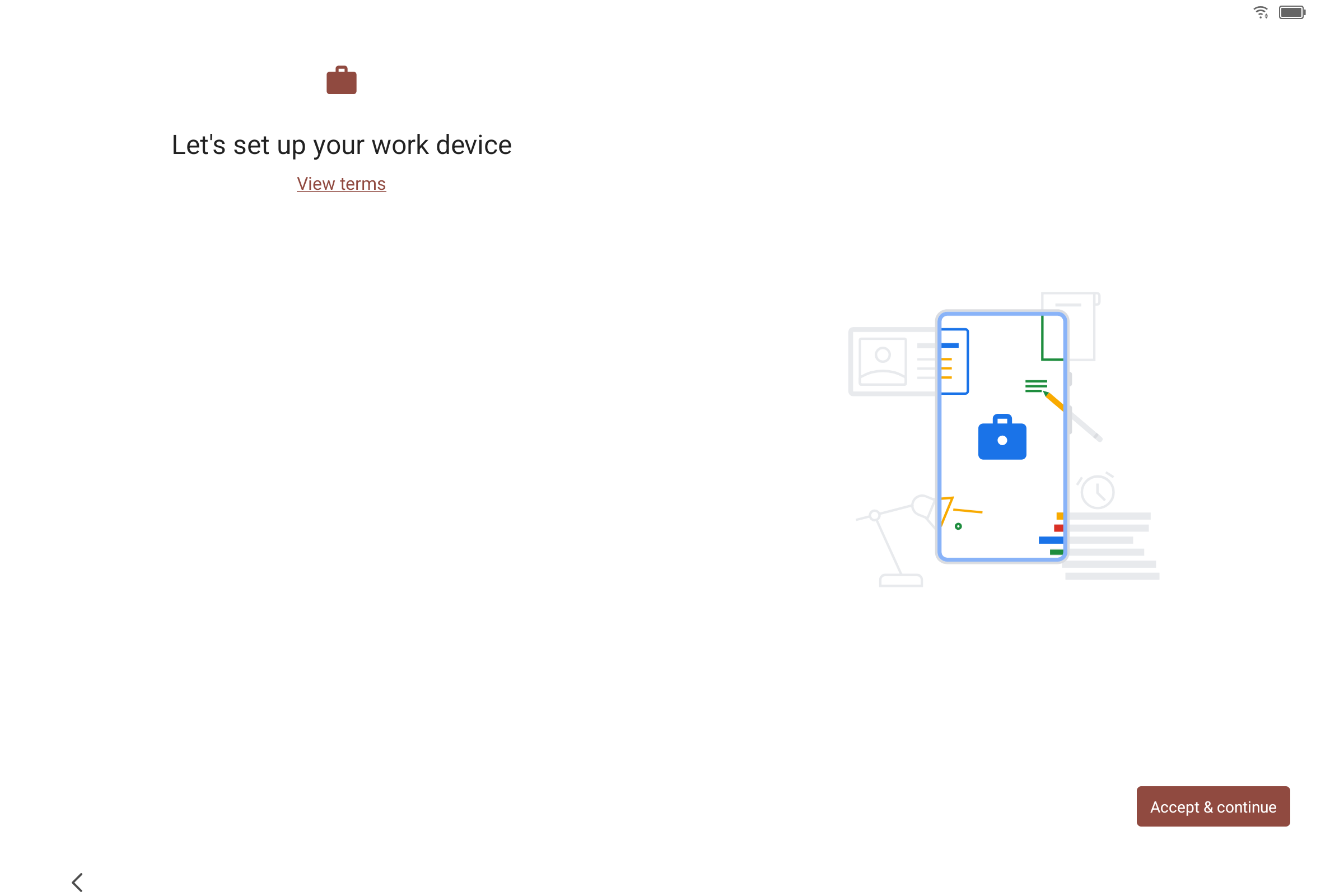
Tap Accept & continue. -
08.
"this tablet isn't private" — read it, then tap Next.
This is the screen that looks most alarming. Android is required by law to show this warning any time an app is given control of a tablet's screen — even for a family display at home.
What it actually means in practice: lifestuff can see what's happening on your tablet, because it's the app running on your tablet. No one else can see anything. There is no employer, no IT department, no third party monitoring your screen.
This is expected. Tap Next. The "IT admin" Android mentions is lifestuff itself — it's the app that controls the screen. Only you and your household can see what's on the display.
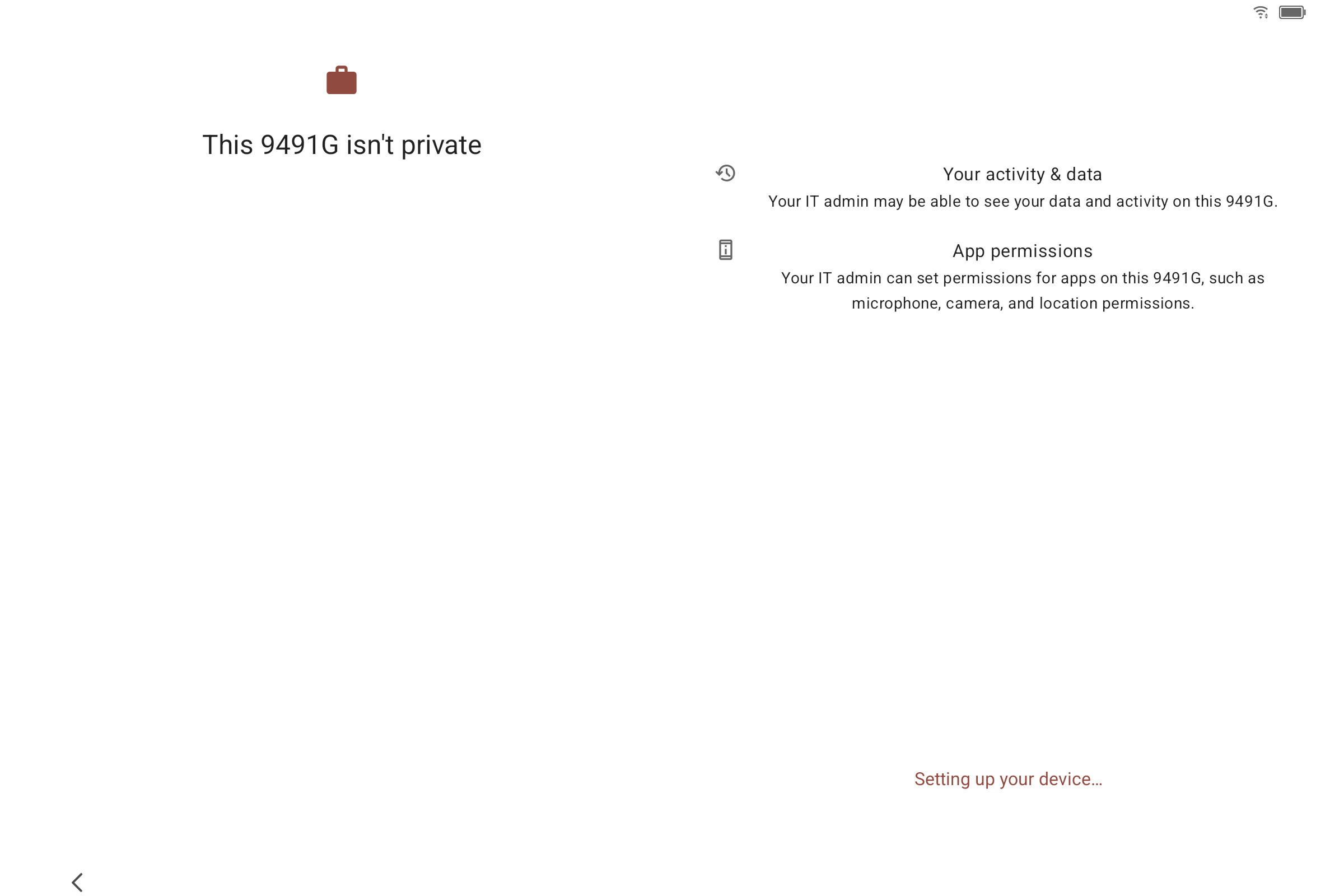
Android setting up — it may show "Setting up your device…" first. 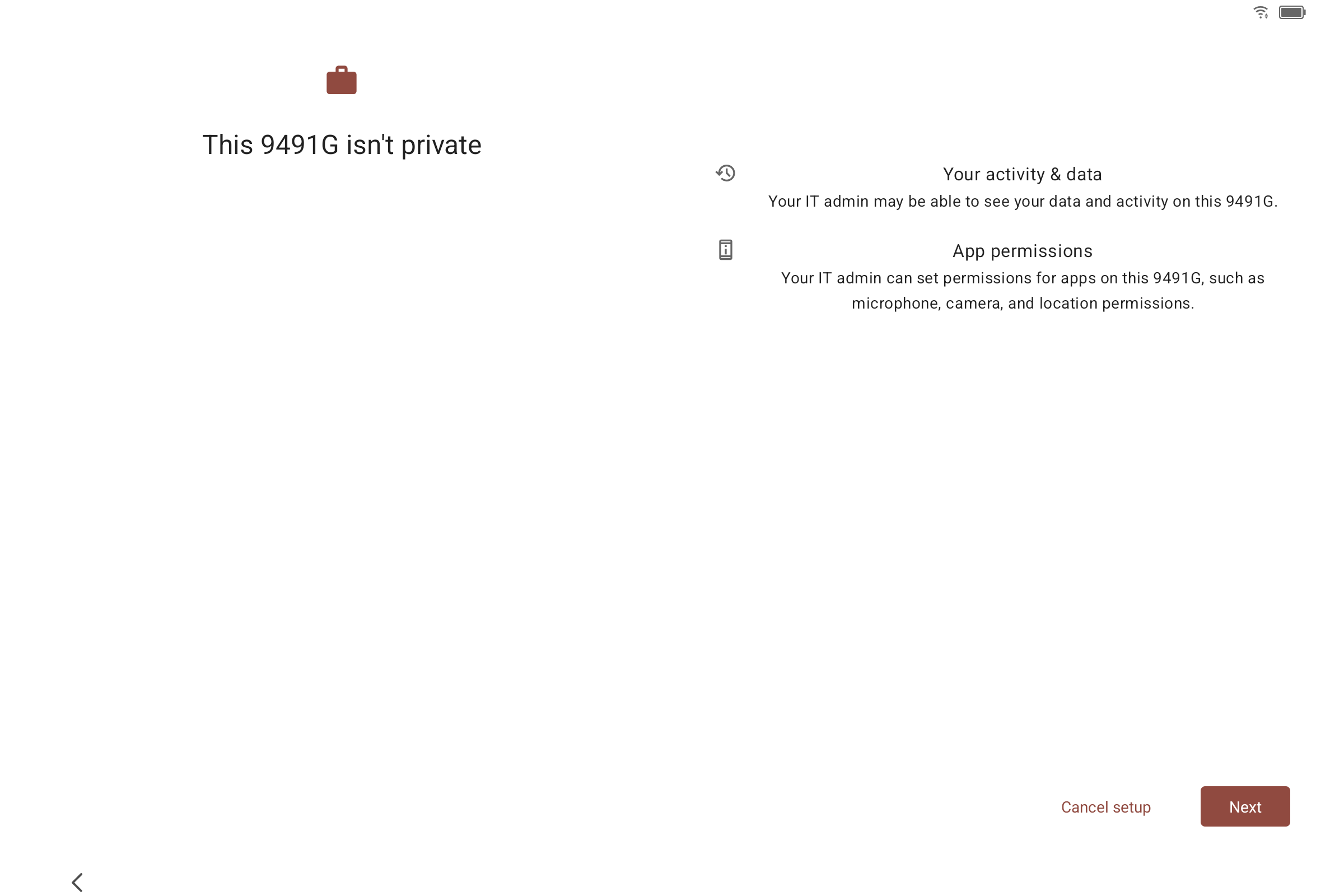
Once it finishes, the Next button appears. Tap Next. -
09.
Android asks about permissions — accept or decline as you prefer.
Android shows a screen asking about access to location and whether to share diagnostic and usage data. These are Android's standard setup prompts, not anything specific to lifestuff — lifestuff doesn't require any of them to work.
Your choice, either way. Accept or decline per your own preference — the setup continues either way.
-
10.
lifestuff opens and links to your account.
Android finishes installing lifestuff and hands control to the app. On most tablets this happens automatically — the app connects to your account using the QR you scanned and takes you straight into setup.
If instead you see the screen on the right — "not authorised — enter activation code" — go to lifestuff.tech/devices on your phone, tap "show an activation code", and type those letters into the tablet. This only happens if Wi-Fi dropped briefly during setup. The code is good for 10 minutes.
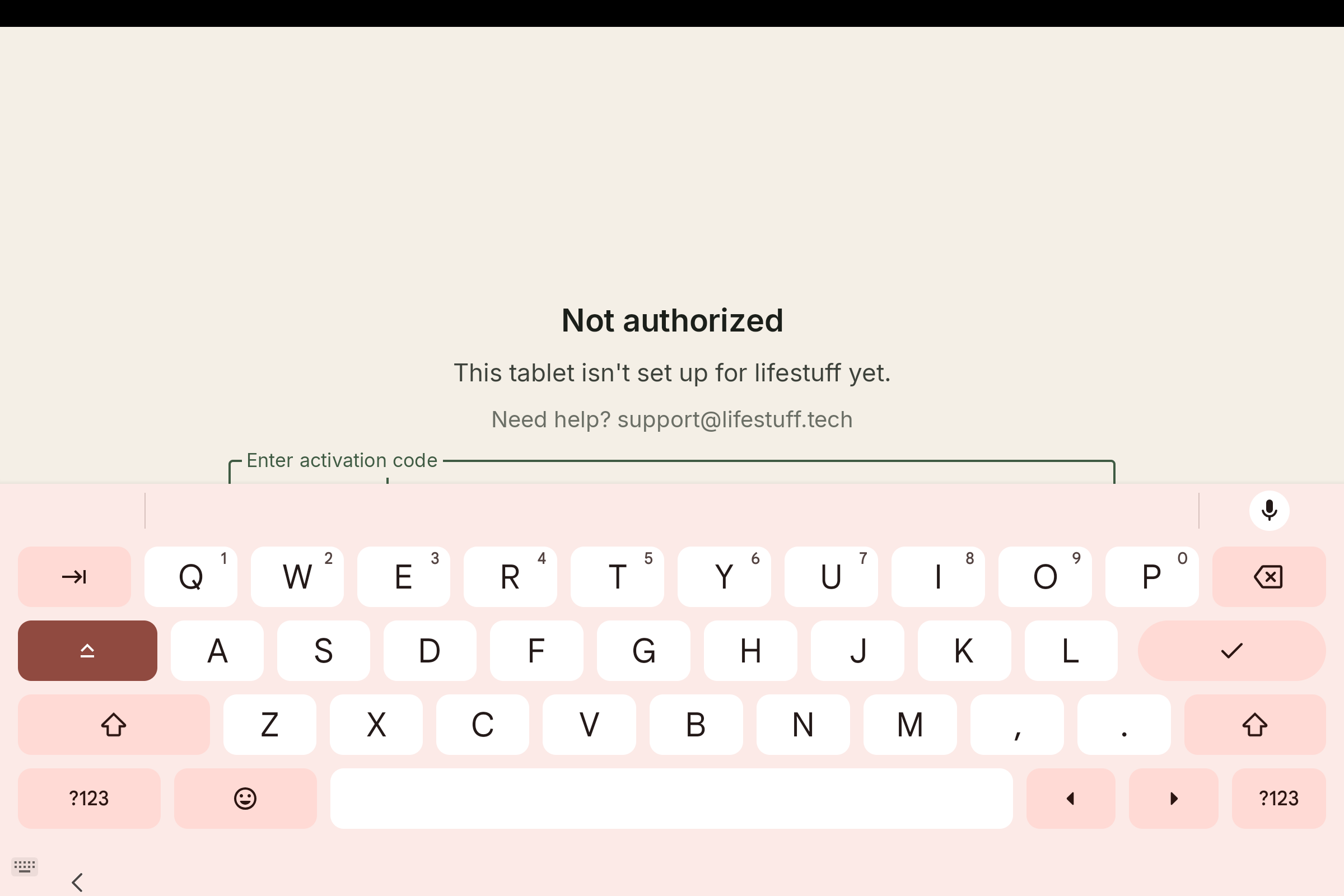
Only appears if Wi-Fi dropped during setup. Enter the code from your account. -
11.
finish setting up your household — on the wall or your phone.
Once lifestuff is running you'll set up the rest — family members, connecting your calendars, uploading photos, and the PIN you'll use to access settings (about another 5 minutes). You can do this either on the wall tablet itself, or from the companion app on your phone — Android or iOS — once it's paired. Typing is comfier on a phone, so many people finish there.
When you're done, mount the tablet on the wall and enjoy it.
common questions.
why does Android say "work device" and "organisation"?
Android uses the same built-in feature for home kiosk displays and corporate tablets. The wording is Android's, not lifestuff's — there's no employer or company involved. Your tablet is yours; lifestuff just runs full-screen on it.
can I use a tablet I already own?
Yes, but it needs to be factory reset first. Android can only give lifestuff full-screen control during the tablet's initial setup. Back up any photos or files you want to keep, then reset from Settings → General management → Reset → Factory data reset.
why can't I just install lifestuff from the Play Store on the tablet?
A normal Play Store install can't lock the tablet to a single app. The QR setup is the only way Android allows an app to run full-screen as a dedicated display — and it only works during the tablet's first startup.
the tablet shows "not authorised" instead of my account — what now?
Go to lifestuff.tech/devices on your phone, tap "show an activation code", and type it into the tablet. This usually happens if the tablet's Wi-Fi dropped for a moment during setup. The code is good for 10 minutes.
how do I exit lifestuff to change settings?
Tap the lifestuff logo in the corner of the screen and enter your parent PIN. This takes you to the settings area where you can update calendars, family members, photos, and Wi-Fi.
something went wrong — who do I contact?
Email support@lifestuff.tech and include your tablet model and the step where things stopped. We usually respond within a few hours.