
your wall tablets.
once a tablet finishes setup it appears here on its own — usually within a minute or two, no need to refresh. tap approve to bring it online; the short code shown under the device name matches the one on the tablet itself, so you know it's yours.
- loading…
set up a wall tablet.
lifestuff takes over the whole screen, and Android only allows that during a tablet's very first setup — so you start from a factory-reset tablet, generate a setup code here, and scan it during Android's welcome flow. the steps are below; do them in order and you'll be on the wall in about ten minutes.
before you begin — use a fresh tablet. if it's brand new, just power it on. if it's been used before, back up anything you want to keep, then factory reset it (Settings → General management → Reset → Factory data reset) before you start. when Android boots fresh, skip the "sign in to Google" screen — you'll add accounts inside lifestuff later.
keep this open on your phone — you'll hold it up to the tablet in step 3.
-
01.
power on the fresh tablet.
from a factory-reset tablet you'll land on Android's "Welcome" screen. stay on this very first screen — don't sign in to Google.
-
02.
tap the screen six times, very quickly.
tap anywhere on that first screen six times very quickly — in fast succession, not slow deliberate taps. Android opens its built-in QR scanner.
if the camera doesn't appear, you're most likely not tapping quickly enough — try again, faster. also make sure you're on the very first screen, not a Google sign-in; if you've moved past it, factory reset and start again.
-
03.
scan the QR code above.
hold this phone up to the tablet's camera until it scans.
-
04.
connect to Wi-Fi.
after the QR scans, Android prompts you to join a Wi-Fi network — connect to your home network. lifestuff then downloads in the background, which takes a few minutes on a typical home connection.
-
05.
"this tablet belongs to your organisation" — tap Next.
the corporate-sounding wording is Android's. lifestuff uses the same standard feature businesses use to set up office tablets — there's no company involved.
expected. tap Next. it means lifestuff is installing — not that anyone is watching your tablet.
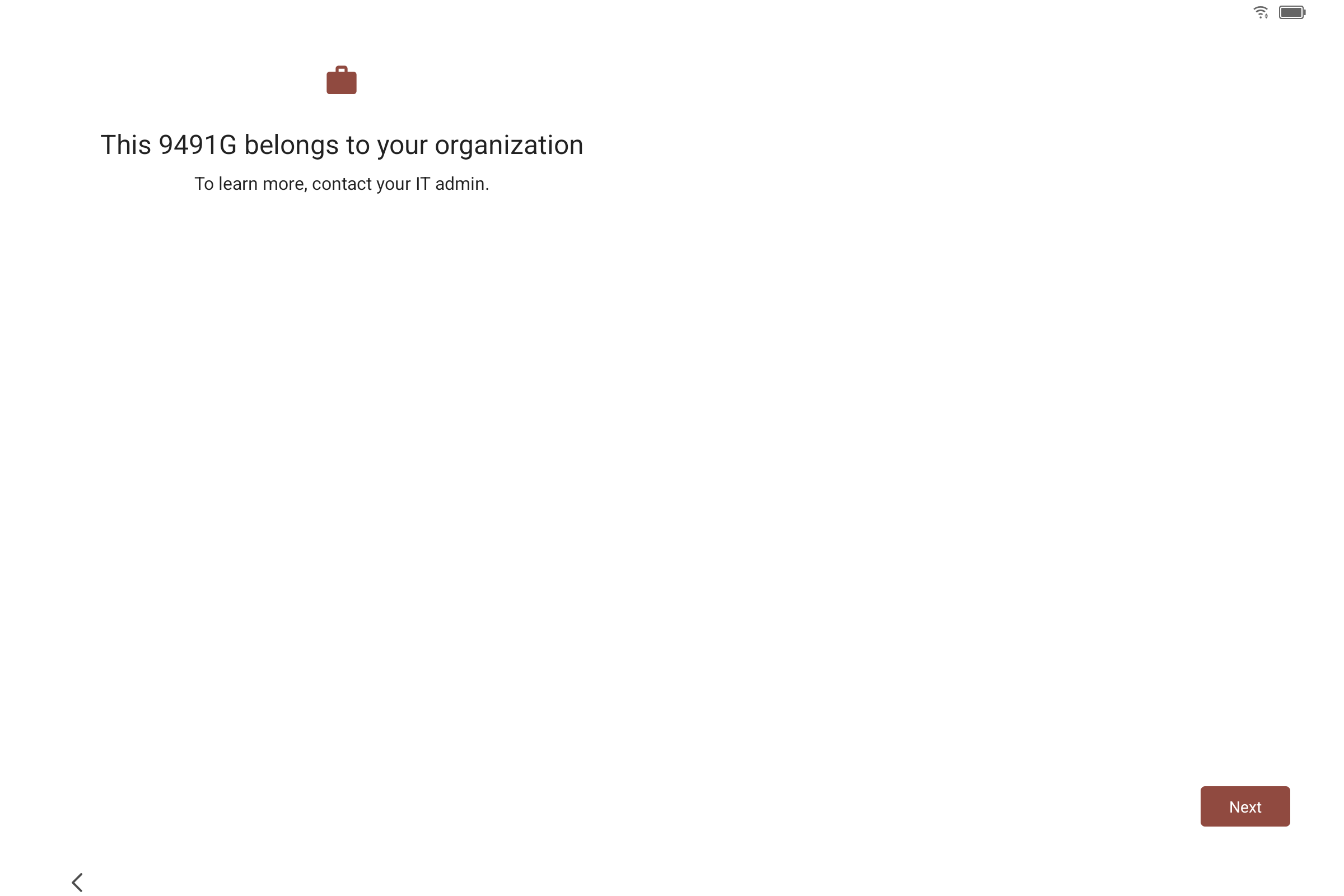
what you'll see. tap Next. -
06.
"let's set up your work device" — tap Accept & continue.
again, "work device" is Android's standard language — it doesn't connect lifestuff to any employer or business.
expected. tap Accept & continue. "view terms" is just Google's standard enterprise setup terms.
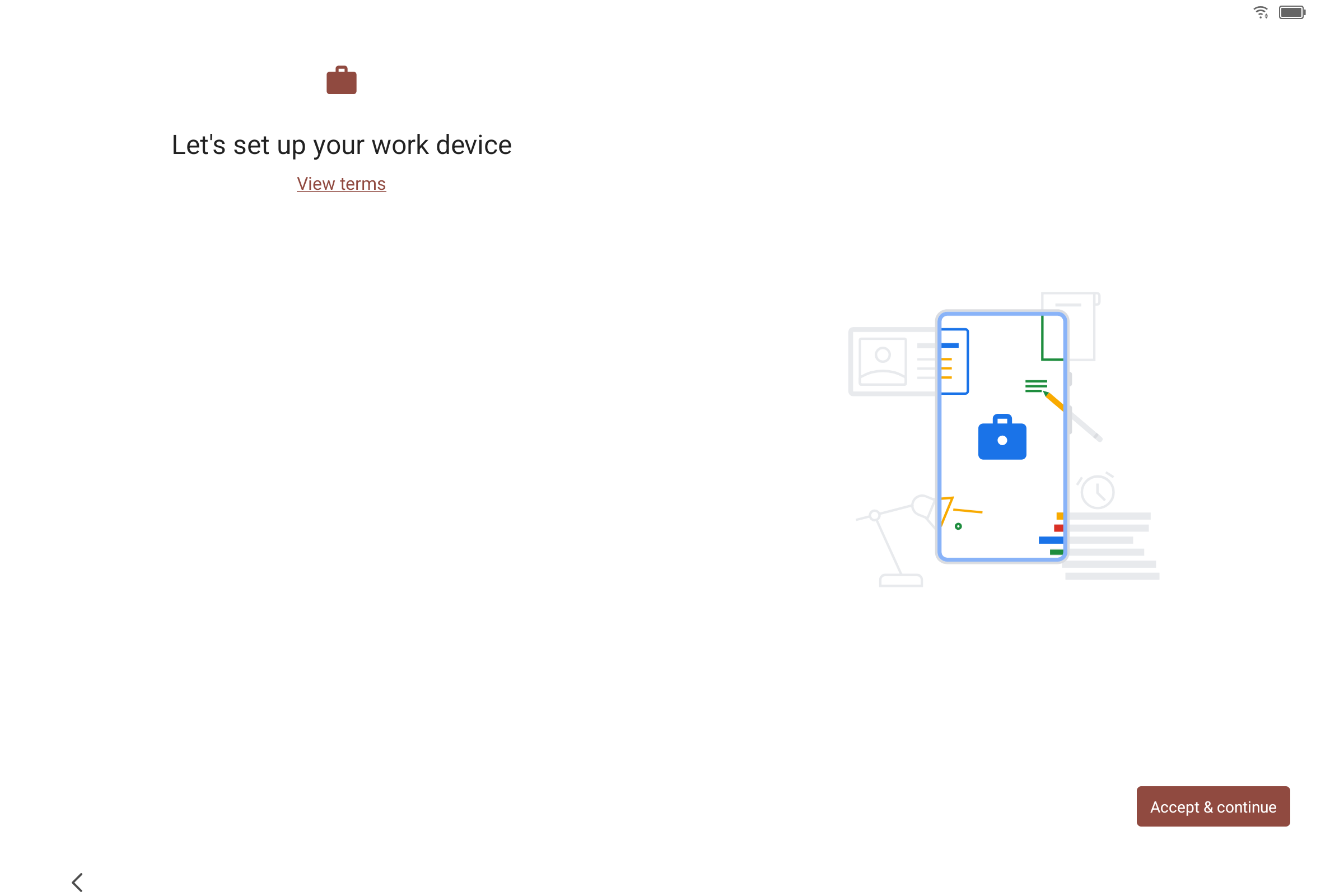
tap Accept & continue. -
07.
"this tablet isn't private" — read it, then tap Next.
the screen that looks most alarming. Android is required to show this warning any time an app controls a tablet's screen — even a family display at home.
in practice: lifestuff can see what's on your tablet because it's the app running on it. no employer, no IT department, no third party — only your household sees the display.
expected. tap Next. the "IT admin" Android mentions is lifestuff itself — the app that controls the screen.
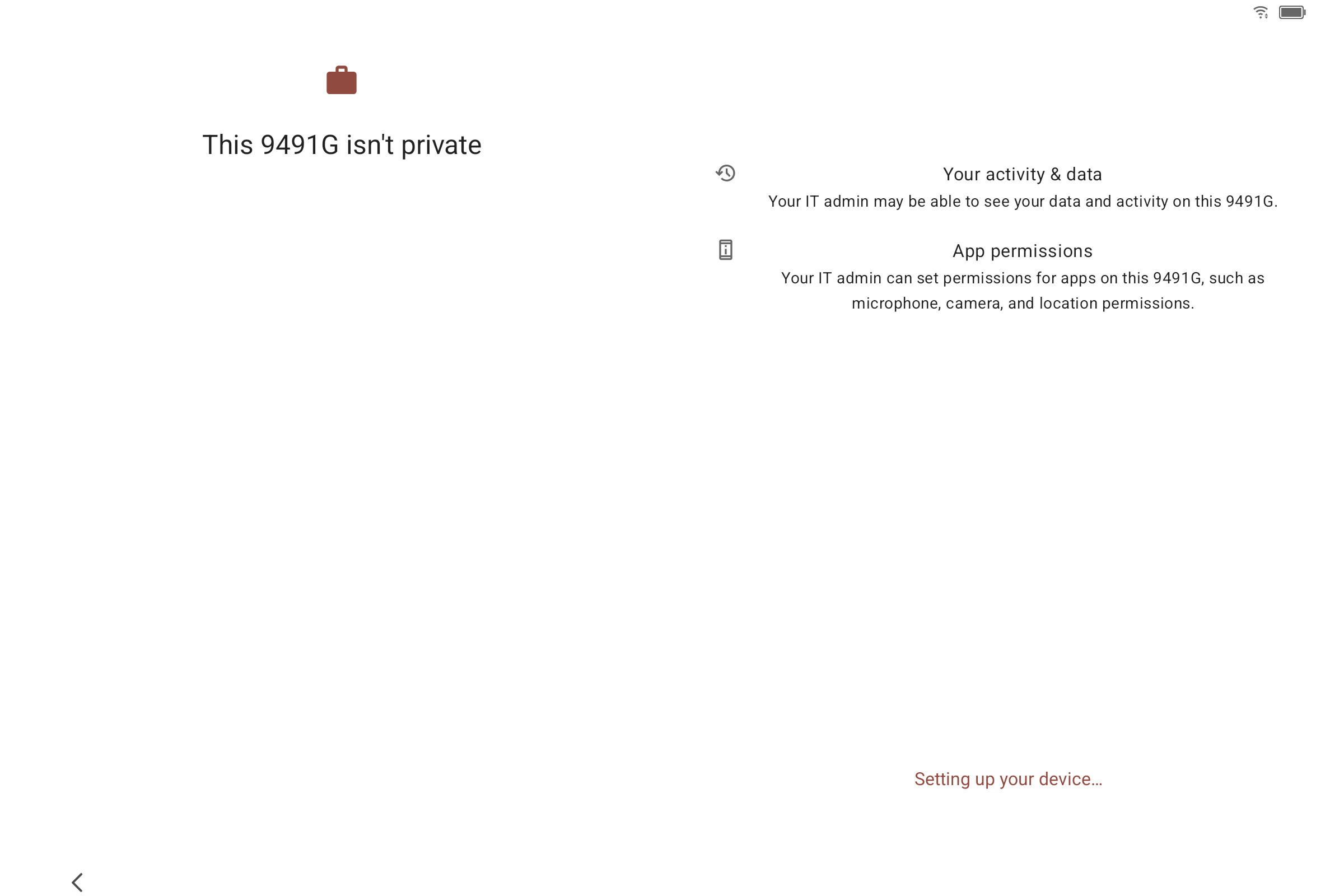
it may show "Setting up your device…" first. 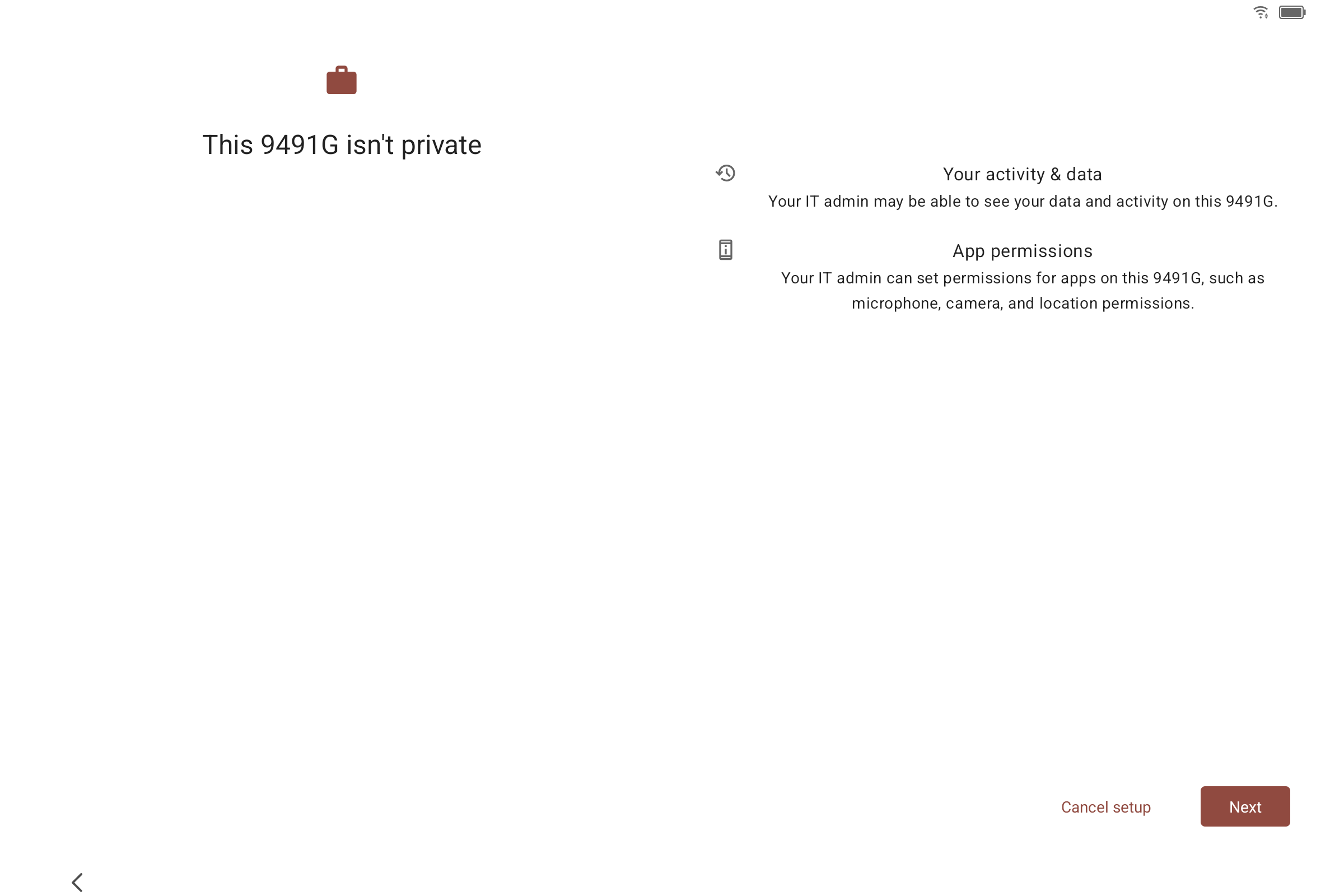
once it finishes, tap Next. -
08.
Android asks about permissions — accept or decline as you prefer.
Android shows a screen asking about access to location and whether to share diagnostic and usage data. these are Android's standard setup prompts, not anything specific to lifestuff — lifestuff doesn't require any of them to work.
your choice, either way. accept or decline per your own preference — the setup continues either way.
-
09.
lifestuff opens and links to your account.
Android hands control to lifestuff, which connects to your account using the QR you scanned. on most tablets this is automatic — nothing to type, and the app goes straight into the household setup wizard.
if you see "not authorised — enter activation code": Wi-Fi dropped briefly during install — not a problem with your account or the tablet. wait about 30 seconds; if it's still showing, use the fallback below.
fallback — if the activation screen is still showing after 30 seconds:
- tap "show an activation code" below — a short code appears with a 10-minute timer.
- on the tablet, type it into the "enter activation code" field — capital letters, no spaces.
- the tablet links to your account and moves on to setup automatically.
code expired before you typed it? tap "show an activation code" again — a fresh one generates every time. still rejected? check the tablet's Wi-Fi (swipe down from the top of the screen), then try a new code; if it keeps failing, factory reset and start from step 1, or contact support.
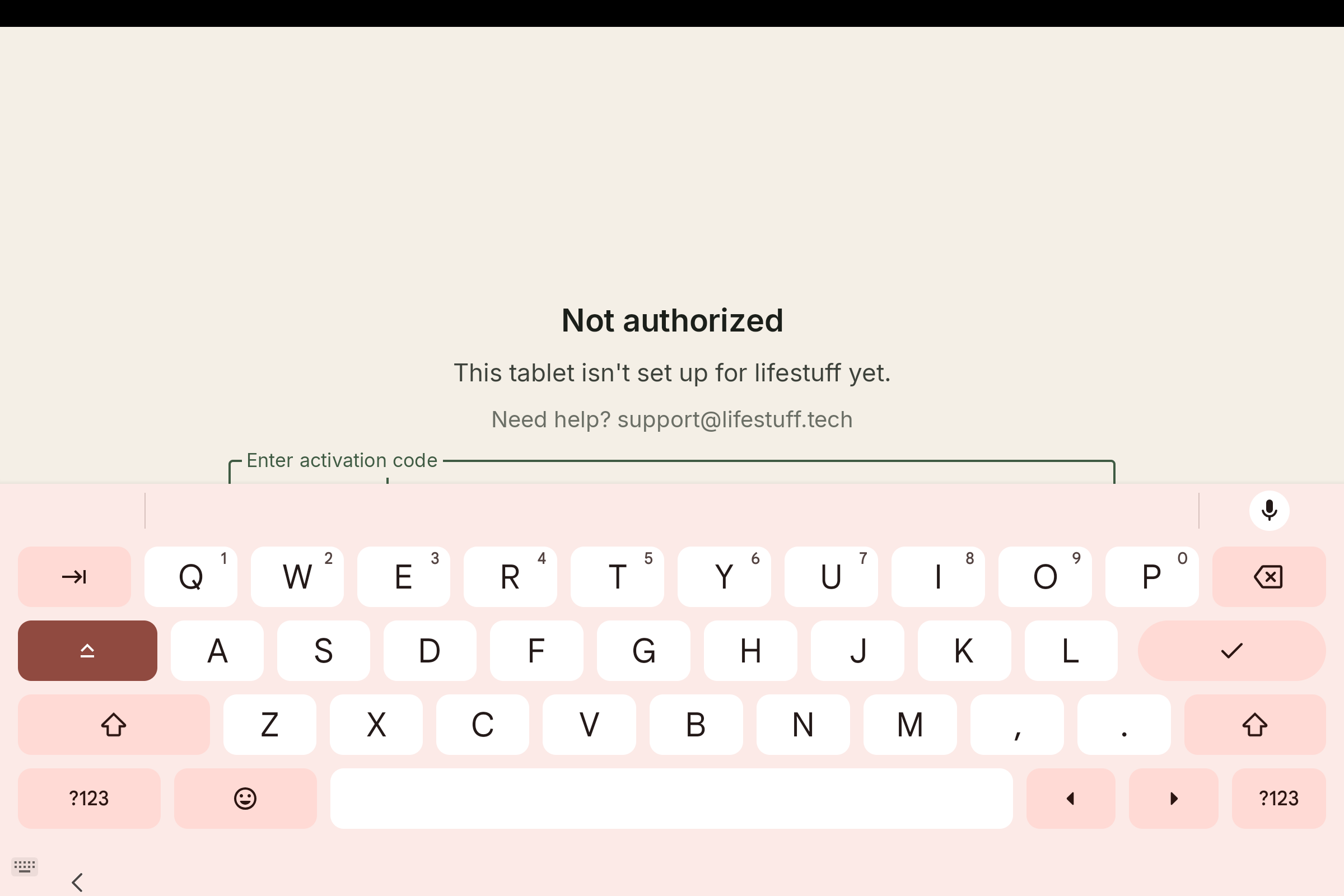
the fallback screen — only appears if Wi-Fi dropped. most setups never see it. -
10.
finish setting up your household — on the wall or your phone.
set up the rest — family members, calendars, photos, and the PIN for settings (about five more minutes). you can do this either way: right on the wall tablet's own setup, or from the companion app on your phone — Android or iOS — once it's paired. typing is comfier on a phone, so many people finish there.
once the tablet checks in, it appears in your wall tablets at the top of this page on its own — usually within a minute or two, no refresh needed. it shows as "waiting" with a short code underneath; confirm the code matches the one on the tablet screen, tap approve, and it's live. then hang it on the wall.